Bring your Skills into WeChat
Name a Skill installed in your deployment and start a task with text and images. The example calls an image template Skill and selects a travel poster style.
 codex / WeChat Bridge中文GitHub
Connect personal WeChat to your own Codex.
Use Skills, run commands and read repositories, then continue on the Web.
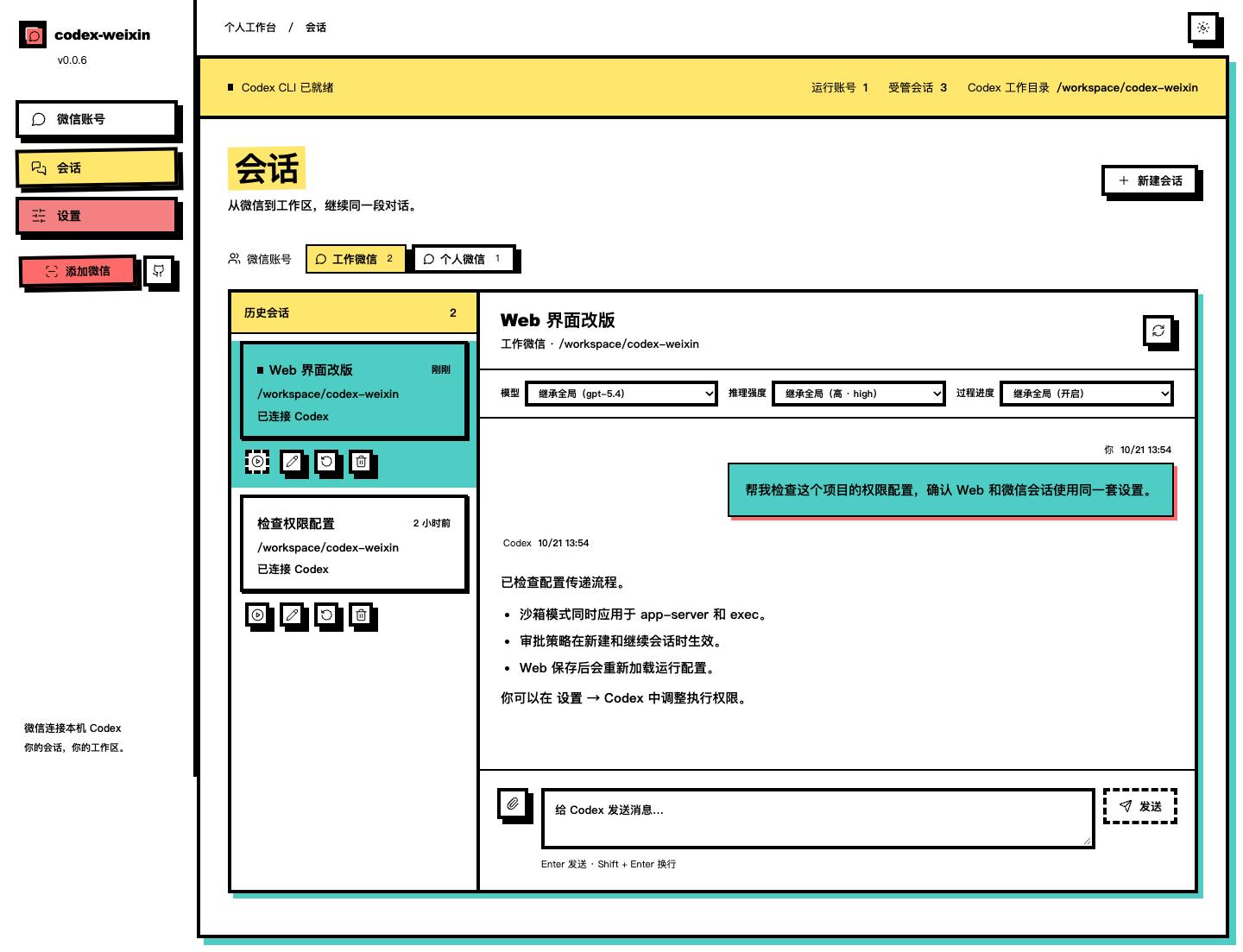
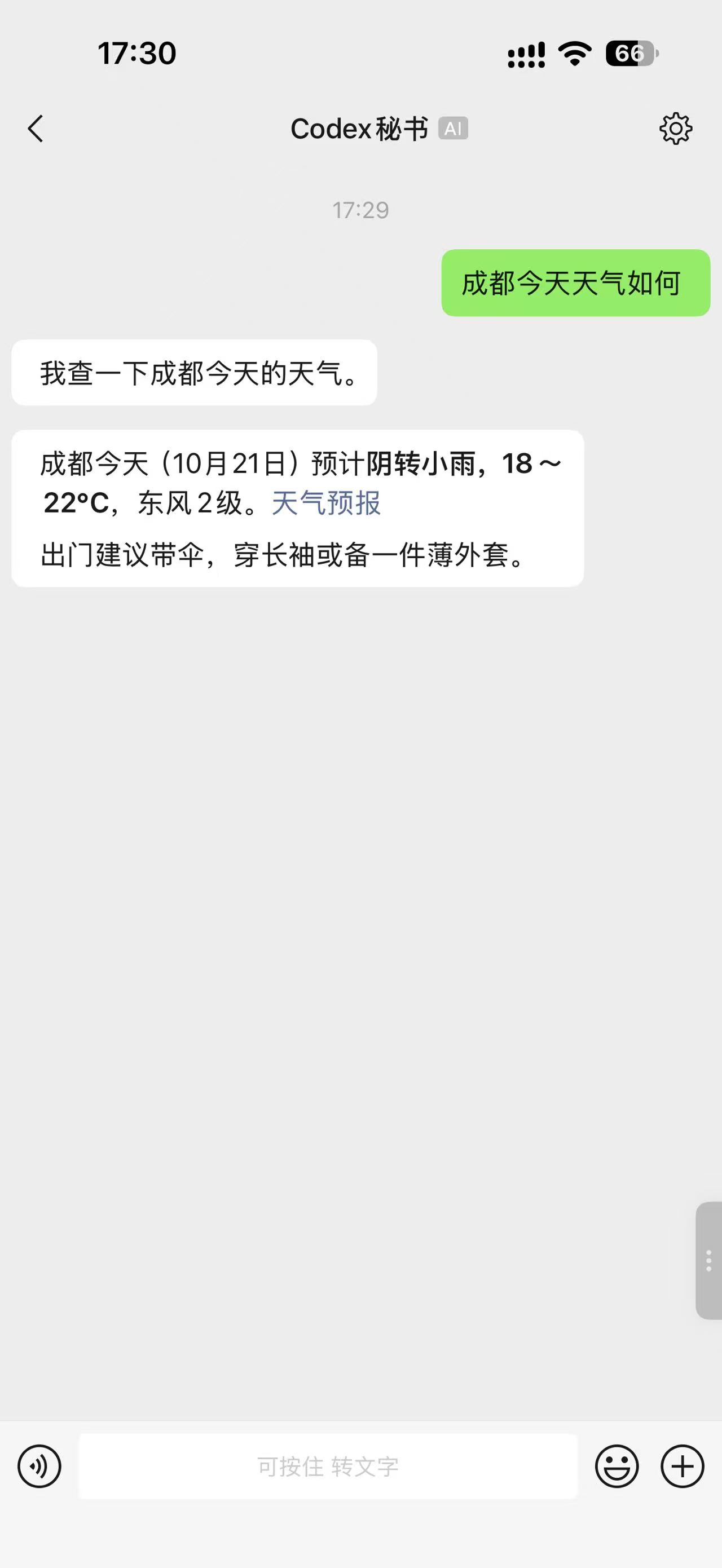
Start in WeChat. Continue on the Web.
One Codex, with context intact.
Send a task in WeChat; Codex runs it on your deployment machine.
Use Skills, switch models, check the weather or read a repository.
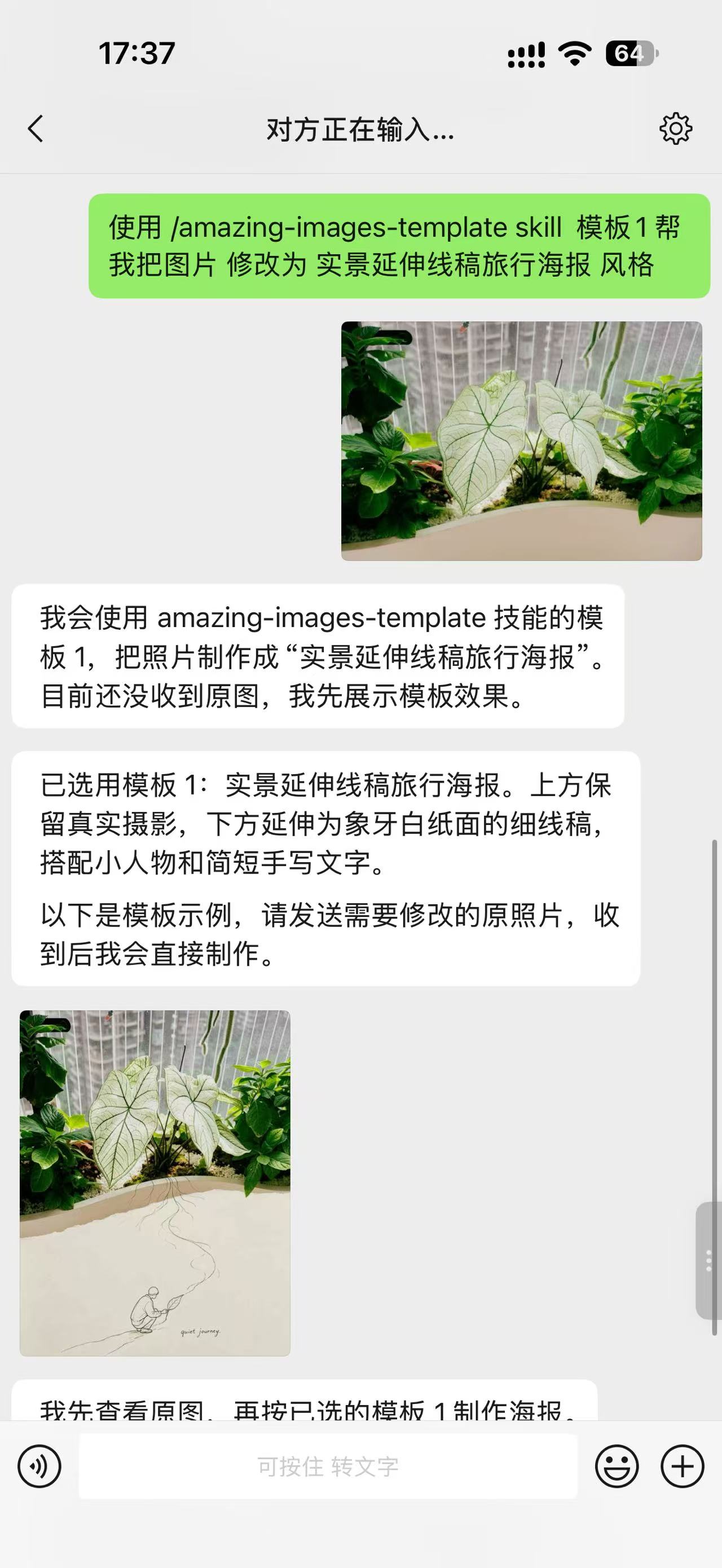
Name the installed amazing-images-template Skill in WeChat and choose template 1 to start a travel poster task. The screenshot shows template selection and example feedback.
Use the image template Skill to turn a photo into a travel poster with an extended line drawing.Open full screenshot ↗
Actual WeChat conversations supplied by the project author. Screenshots are in Chinese. Skills and tools must be available in your Codex environment.
From a photo to a project, from a question to ongoing collaboration.
Work with your own environment through a familiar conversation.
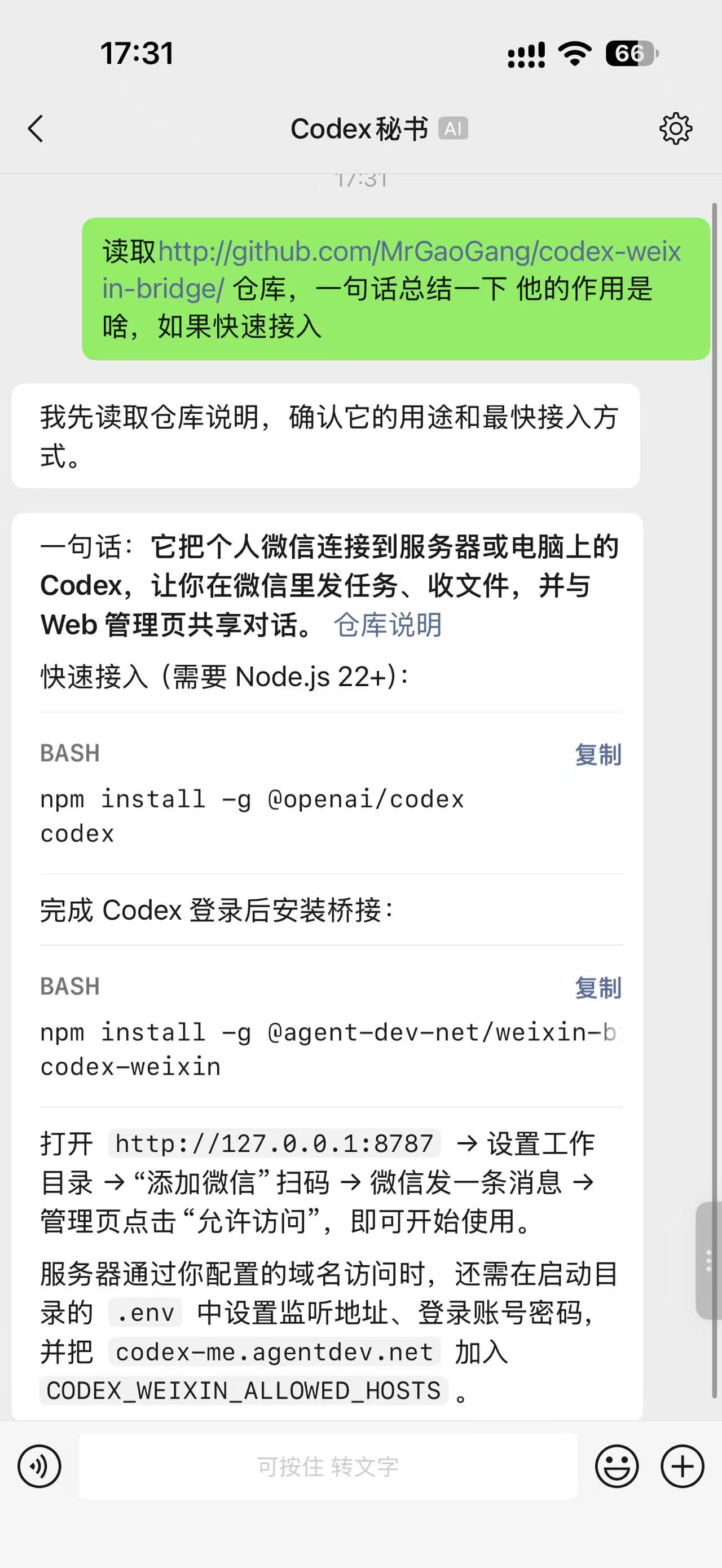
Name a Skill installed in your deployment and start a task with text and images. The example calls an image template Skill and selects a travel poster style.
Codex can return local images, videos and files as native WeChat messages. Audio is sent as a file, so you can open the results from your phone.
Progress is shown by default and can be collapsed on the Web. Send /stop when you need to interrupt the current task.
Start with /new or switch to history with /resume. WeChat and the Web share one Codex thread, with model and reasoning settings per session.
Review Markdown history, add attachments and continue the same Codex thread from WeChat in the Web interface.
Independent connection status, contact authorization and managed sessions. Scan again for an existing account while retaining local notes and history.
Configure workspaces, allowed directories and sandbox policy. The Web supports login and update checks; npm installations can update and restart from the page.
Your own computer, or an online remote server.
Tasks run on that machine using its Codex environment.
Run the bridge on your Mac, Windows or Linux computer. Codex uses that computer’s workspace; the management page is local by default.
npm install -g @agent-dev-net/weixin-bridge@latest
codex-weixin
The management page opens in your browser after startup.
From environment setup to your first task.
Follow these steps to start your first bridged conversation.
Install and sign in to Codex CLI first
npm install -g @openai/codex
codex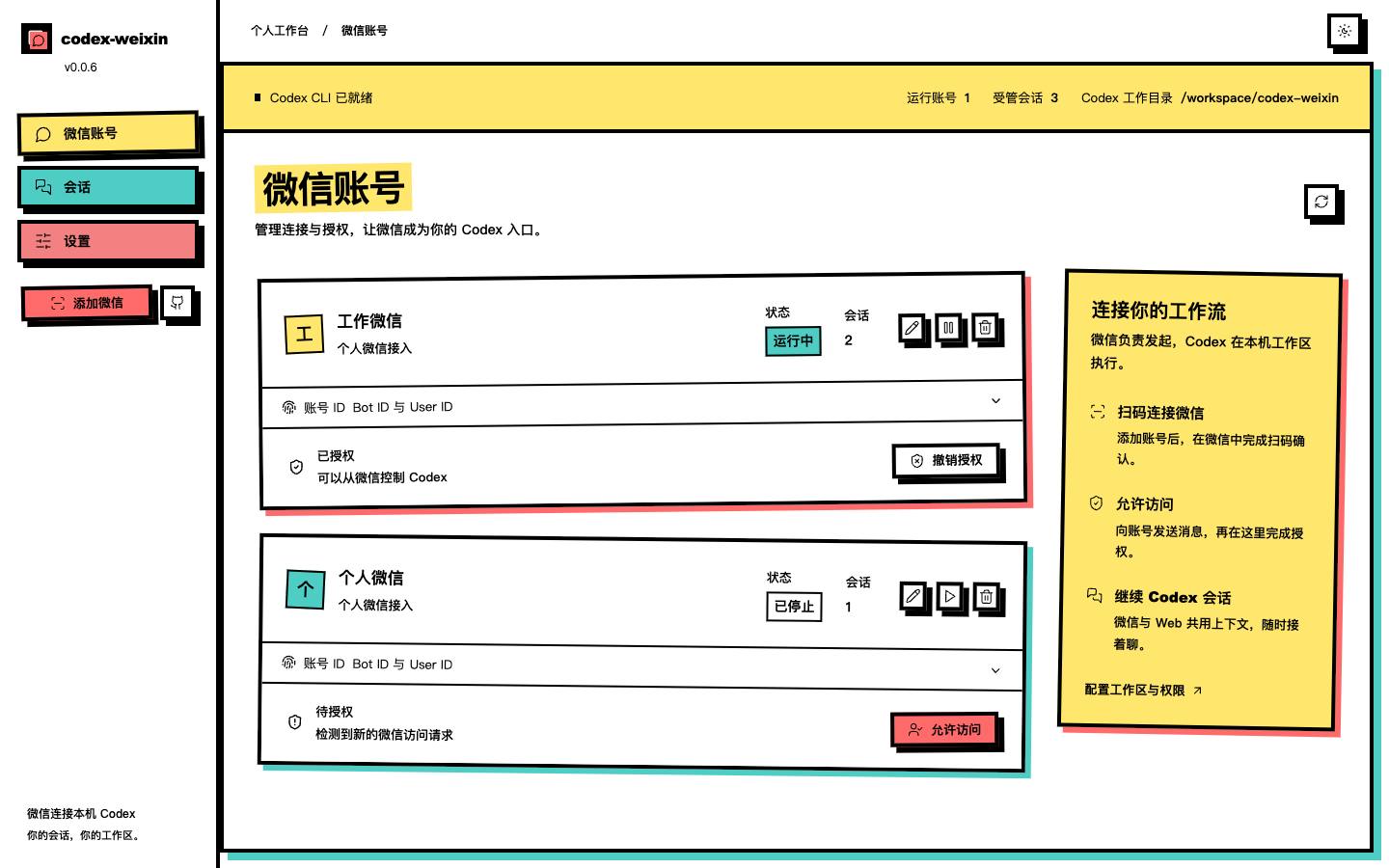
After signing in to Codex, install the npm package using the deployment instructions above. Run codex-weixin to open the management page.
In Settings, confirm the default working directory and allowed directories. Choose a model, sandbox and approval policy as needed, then save.
Choose Add WeChat, scan the QR code and confirm sign-in. Repeat to connect multiple personal WeChat accounts.
Send a message to the connected account from WeChat. Return to WeChat Accounts and choose Allow access for the new request.
Try: “Read this project’s structure and explain each directory.” Open Sessions on the Web to continue the conversation.
/newStart a new managed session/resumeView history and continue/modelView or switch the model/stopInterrupt the running taskThe bridge and Codex run on the deployment machine. Tasks cannot run when it is powered off, asleep or the service is stopped. Use an online remote server for continuous availability.
Node.js 22+, an installed and signed-in Codex CLI, and personal WeChat for QR sign-in. The bridge uses the deployment machine’s Codex login and workspace settings.
Yes. WeChat and the Web share Codex threads managed by this bridge. It only manages sessions created and used by this service, without taking over all history from other terminals.
Each WeChat attachment can be up to 100 MiB. The Web accepts up to 10 files per upload, totaling at most 100 MiB. Files are isolated by WeChat account and session.
Install Node.js, Codex CLI and the bridge, then set the listening address, allowed hosts and Web credentials. Access through an actual IP or domain. For public access, use an HTTPS reverse proxy and restrict access to the service port.
WeChat contacts require explicit authorization. Enable Web login through environment variables and configure working directories, allowed directories, sandbox and approval policy in settings. The bridge currently has no interactive approval interface; approval requests are rejected.